Getting Native Quick Share on Ubuntu with Packet

I'm so happy to have you here in the Frazcave. This is my little place on the web, kind of like the Batcave but with more colors! I write here mainly to relax and share what I like, hoping to create a cozy place for anyone who visits.
If you want to chat, my contacts are below.
Fra, just give me the commands!
Ok, here’s the TL;DR:
- Install Packet:
flatpak install flathub io.github.nozwock.Packet- Run it:
flatpak run io.github.nozwock.Packet- Make sure Bluetooth is on and both devices are on the same Wi-Fi network
- If you use UFW, choose a port in Packet settings and allow it, for example:
sudo ufw allow from 192.168.1.0/24 to any port 44911 proto tcp- From Android, use Share -> Quick Share and select your Linux computer
This is one of those unexpected posts that just decided to pop out while I wanted to write about other things.
I was writing notes for a couple of shelf entries on my phone, just plain Markdown files. At some point I decided they were good enough to be shared, and that’s where the story begins.
My usual flow would be to send them to my saved messages on Telegram and open them from the laptop. This time I wanted to try a flow that felt more natural than sending things to a remote server just to read them on another device in the same room.
When I need to share files between phones, or with my Windows desktop, I use Quick Share and it works amazingly. So I wanted something similar but SURPRISE, on Linux Quick Share is not available!
What I tried
My first attempt was Valent.
Since I’m running GNOME, it seemed like the obvious choice. It implements the KDE Connect protocol and integrates nicely with the desktop.
It worked well, but after using it for a while I realized I didn’t actually need everything it offers. Notification sync, clipboard sharing, media controls, remote input… they’re all great features, just not the ones I was looking for.
Next I tried LocalSend.
It’s another excellent application: open source, cross-platform, simple to use, and honestly one of the easiest ways to transfer files between devices.
But I didn’t want to install another client on my phone. I tried the web version too, but opening the browser just to share a file was not ideal.
That’s when I found Packet.
Packet is a small app that does exactly the thing I was looking for: it makes your Linux machine appear inside Android’s native Quick Share menu.
So instead of changing the way I share things from my phone, I can keep using the same Android flow I already use everywhere else. Open the file, tap share, choose Quick Share, select the computer.
That’s it. No extra Android app, no new sharing habit to remember, no sending files to myself through a chat app like a caveman with Wi-Fi.
Installing Packet
Packet is distributed on Flathub, so if you don’t already have Flatpak installed, install it first:
sudo apt update
sudo apt install flatpak
Then add the Flathub repository:
flatpak remote-add --if-not-exists flathub \
https://flathub.org/repo/flathub.flatpakrepo
Finally, install Packet:
flatpak install flathub io.github.nozwock.Packet
And launch it:
flatpak run io.github.nozwock.Packet
Before testing, make sure Bluetooth is enabled. You don’t need to pair the phone and the computer from the Bluetooth settings, at least I didn’t need to. It just needs Bluetooth available for discovery, and both devices need to be on the same Wi-Fi network.
Once Packet is running, your Ubuntu machine should automatically appear in Android’s Quick Share menu.
Sending files from Android requires no additional setup: just tap Share -> Quick Share as you normally would and select your Linux computer.
Configuring the firewall
I use UFW with a default deny policy, so I needed to allow Packet through the firewall.
Packet lets you configure its listening port from the settings. I chose 44911, but any unused high port should work.
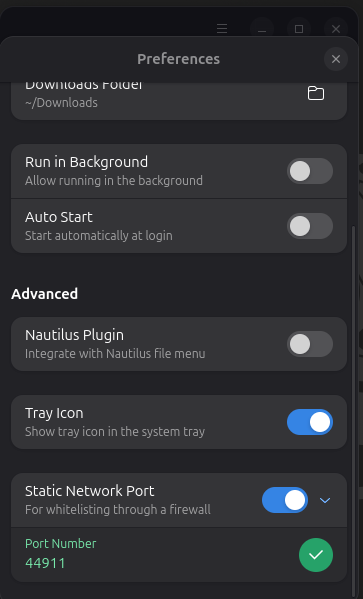
Then I added a single firewall rule:
sudo ufw allow from 192.168.1.0/24 to any port 44911 proto tcp
That was enough.
Initially I expected to also allow UDP traffic for device discovery, but after testing I found that Packet worked perfectly with only the custom TCP port open. Device discovery, sending files, and receiving files all worked without any additional inbound firewall rules.
If your LAN uses a different subnet, simply replace 192.168.1.0/24 with your own.
Sending files from Ubuntu
Sending files in the opposite direction is equally simple.
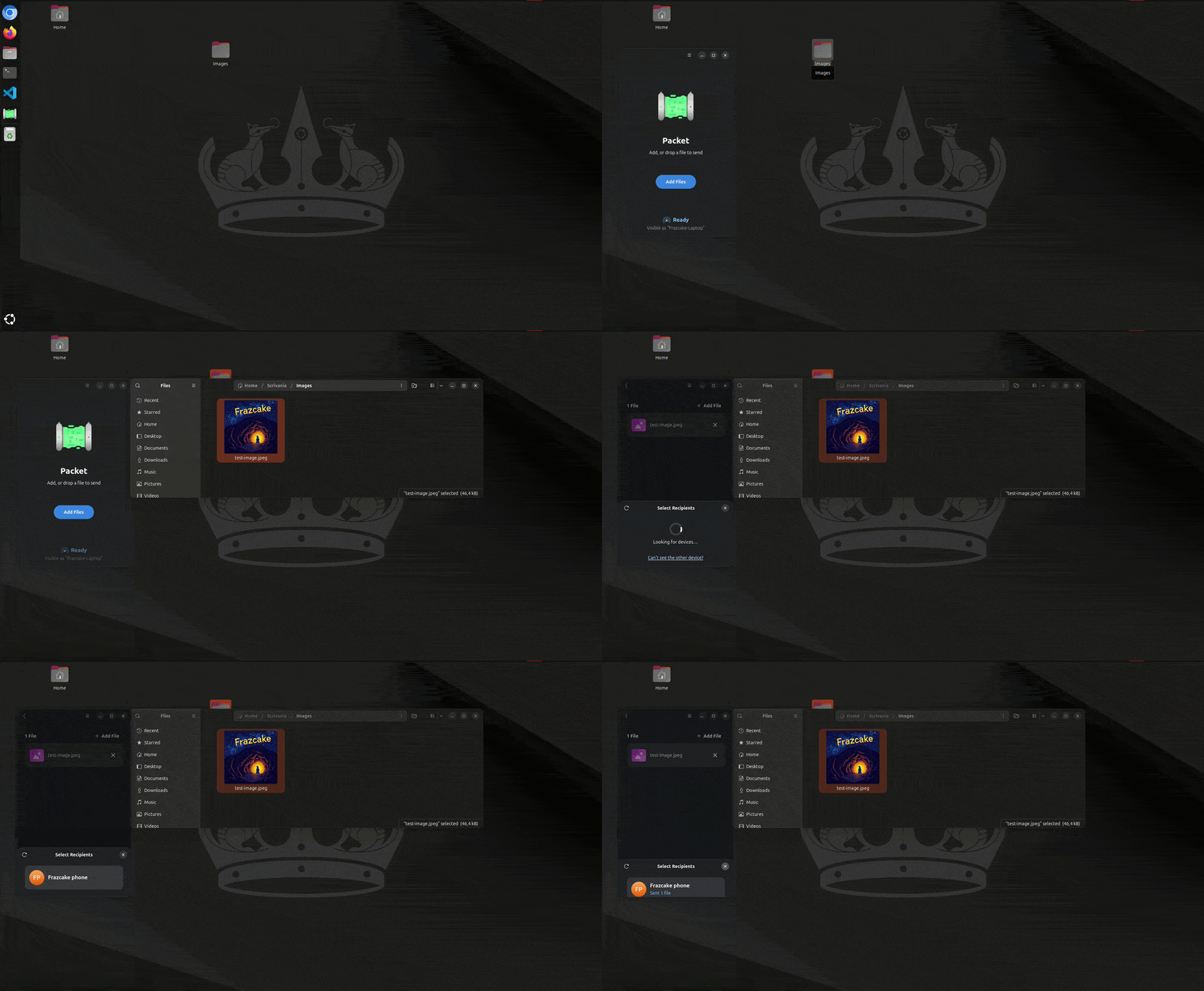
Drag a file into Packet, select your Android device, and accept the transfer on your phone.
Why I skipped the Nautilus extension
Packet also provides a Nautilus extension that adds a “Send with Packet” entry to the right-click menu.
I initially enabled it, but because I installed Packet as a Flatpak, the extension needs additional filesystem permissions to access arbitrary files. The easiest solution is granting Packet access to your entire home directory.
I decided against that.
Dragging a file into the application is just as convenient for me, and I’d rather keep the Flatpak sandbox intact than weaken it for a small usability improvement.
Final thoughts
I’ve been using Packet for a couple of days now and I haven’t had any issue, so I’m super happy with this setup and I would definitely recommend it.
But to be clear, I also tried the other tools I mentioned and I do believe they’re great. They just weren’t the best fit for my use case.
So cave dwellers, now you can go share files! But do it in your cave, this one is mine! <3